CHYRON Corporation
RGB Tools 21-36 Revision D
• After placing an image in the current frame buffer,
press
C or select Image Cut from the Matte Tools
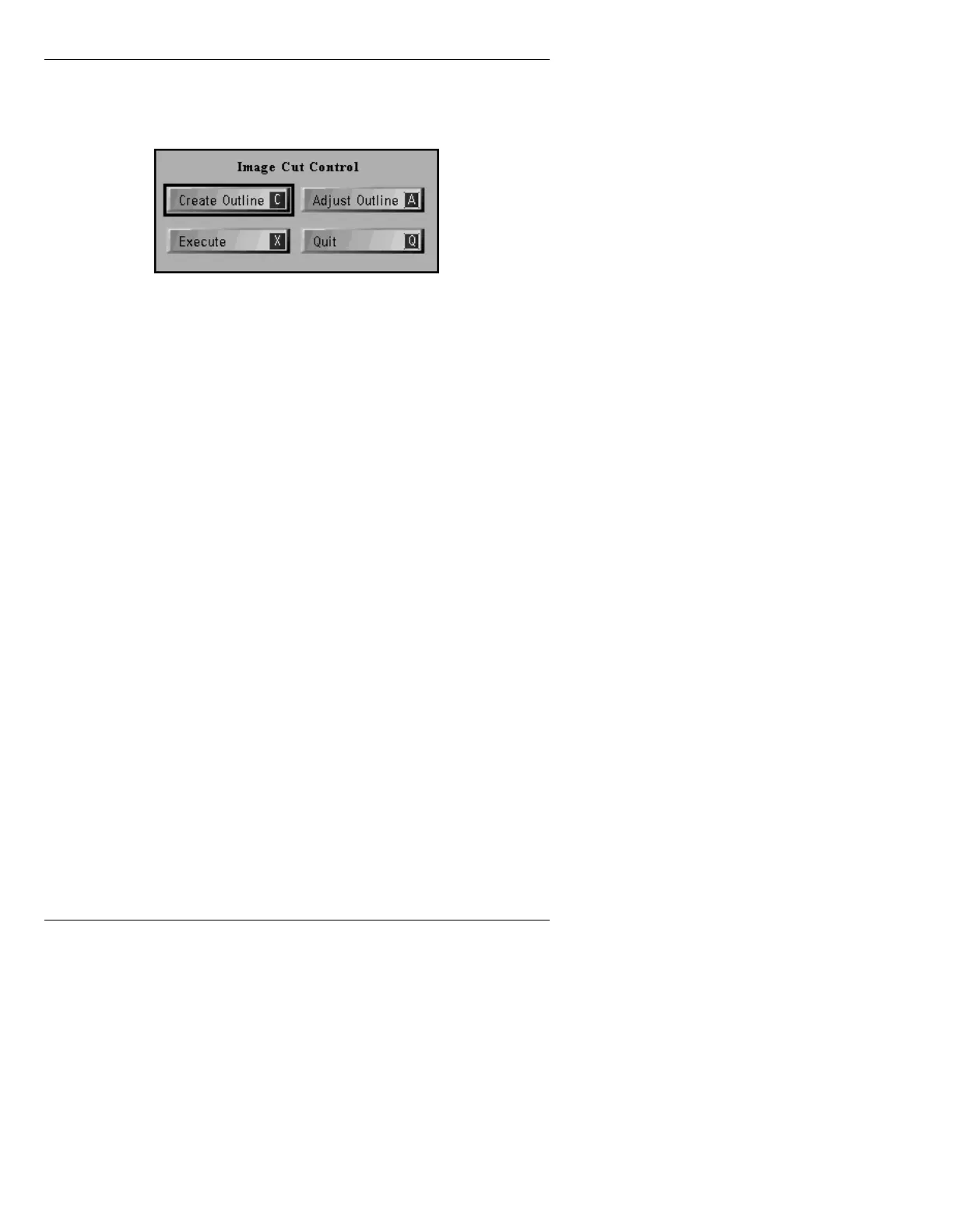
menu to display the Image Cut Control menu.
Figure 21-20. Image Cut Control Menu
Outlines generated using Image Cut consist of points
connected by straight lines. Up to
99 points can be used
in an outline.
&UHDWH2XWOLQH)XQFWL RQ &
Mouse [ ] 1. From within the Image Cut Control menu,
click
Create Outline. The mouse cursor
moves to the Edit Monitor.
[ ] 2. Without pressing either mouse button, move
the mouse to position the edit cursor at the start
point of the outline.
[ ] 3. Click the left button to start a line, then move
the mouse to draw the line.
[ ] 4. Click the left button to end that line and start
another. Repeat as necessary to draw new
lines.
[ ] 5. To close the outline, click the
right mouse
button at the end of the next to last line. A
final line is automatically drawn
connecting the last point to the first point,
closing the outline. The cursor returns to
the Prompts Monitor.



 To Next Page