iNFiNiT! Family Operation Manual
Revision D 3-39 Start-Up
A maximum of two outputs can be selected. In this situa-
tion none of the
XFER functions can be used.
Dedicating an output (setting
Priority: to YES) to IMAG-
ESTOR! ensures that Message Compose operation does
not interfere with IMAGESTOR! operation and vice versa.
If
Priority: is set to NO the selected output(s) can also
be used (shared) by Message Compose.
• Press
or the
SPACE BAR to toggle the output
selection between
On and Off. The default for all
outputs is
Off.
[ ] 3. When finished setting parameters, press
CNTL
to exit the window.
It is not necessary to reboot the system after setting the
Recall Keyboard buffers and outputs. Additionally, the
system reboots using the last buffers and outputs set.
$OLJQ&XUVRU6(783$
Perform this alignment if the cursor channel is not
aligned with the frame buffers. This appears as the cur-
sor not being properly aligned with the typed character.
[ ] 1. Press
A or select the Align Cursor icon. The
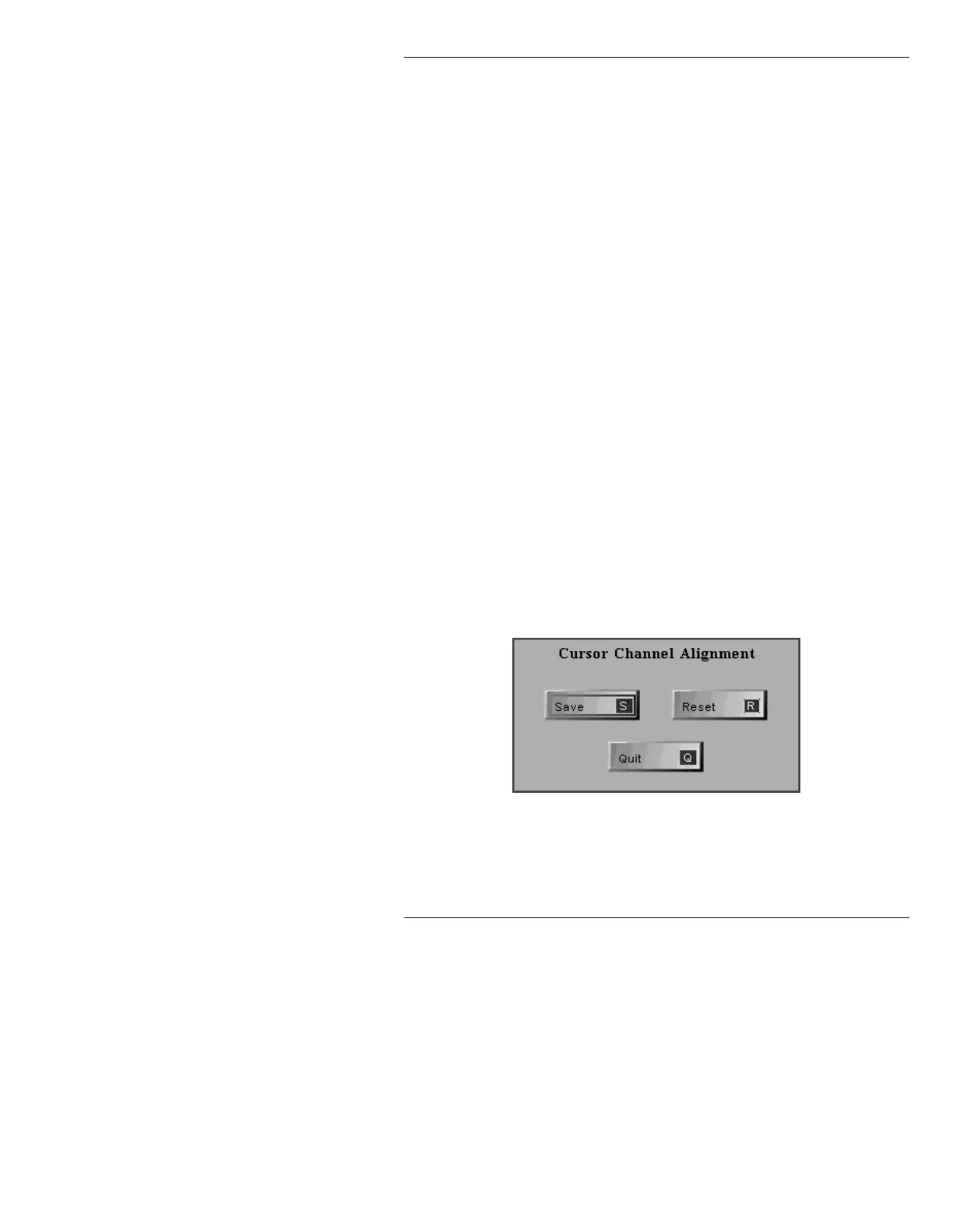
Cursor Channel Alignment menu is displayed.
Figure 3-34. Cursor Channel Alignment Menu
Additionally, one or two white crosses appear on
the Edit Monitor. If there are two (Figure 3-35),
they must be aligned one on top of the other.



 To Next Page