iNFiNiT! Family Operation Manual
Revision D 17-31 Multiple Effects
[ ] 3. Place the cursor on the desired Transform
Script name. Press
or click to select the
Script name.
[ ] 4. Press
CNTL Q or select Quit.
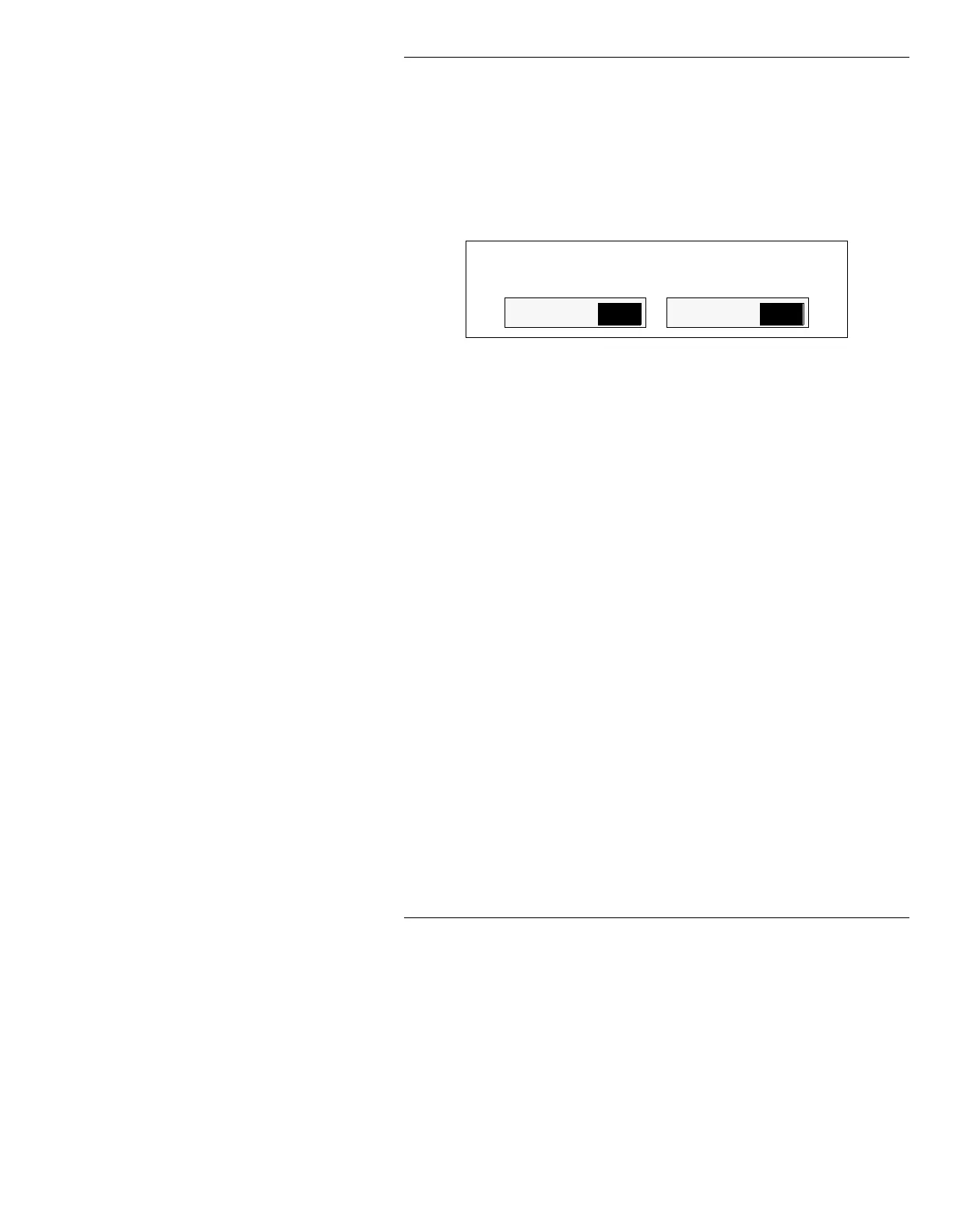
The Save Changes window (Figure 17-11)
appears, asking if any changes should be
saved.
Figure 17-11. Save Changes Window
[ ] 5. Press N or select No.
The Transform Script is now automatically loaded into
Multiple Effects. The Transform Script name is dis-
played in the
Script: field of the Transform window.
Additionally, all of the parameters that had been recorded
as part of the Transform Script are loaded into Multiple
Effects, including the Script length. The
Xform Time
Line appears as part of the Multiple Effects Time Line.
The Start Point of the Transform Script is automatically
set to
0 fields on the Multiple Effects Time Line. The
Start and End Points, as well as the length of the Trans-
form Script, can be changed by altering these values on
the Multiple Effects Time Line. Any changes made to
the length of execution are proportional. The original
Script is not changed by these alterations.
To permanently change the Transform Script, you must
enter the Transform Settings window (
CNTL T), and
record new settings. Note that the object file for that
Transform Script must be recorded as well in order for
the Transform Script to execute. See the Transform
Option manual for information on building Scripts.
N
NO
Y
YES
Save Changes?



 To Next Page