Chapter 6: System Control Module (SCM)
STANDARD Revision 1.0 C4® CMTS Release 8.3 User Guide
© 2016 ARRIS Enterprises LLC. All Rights Reserved. 185
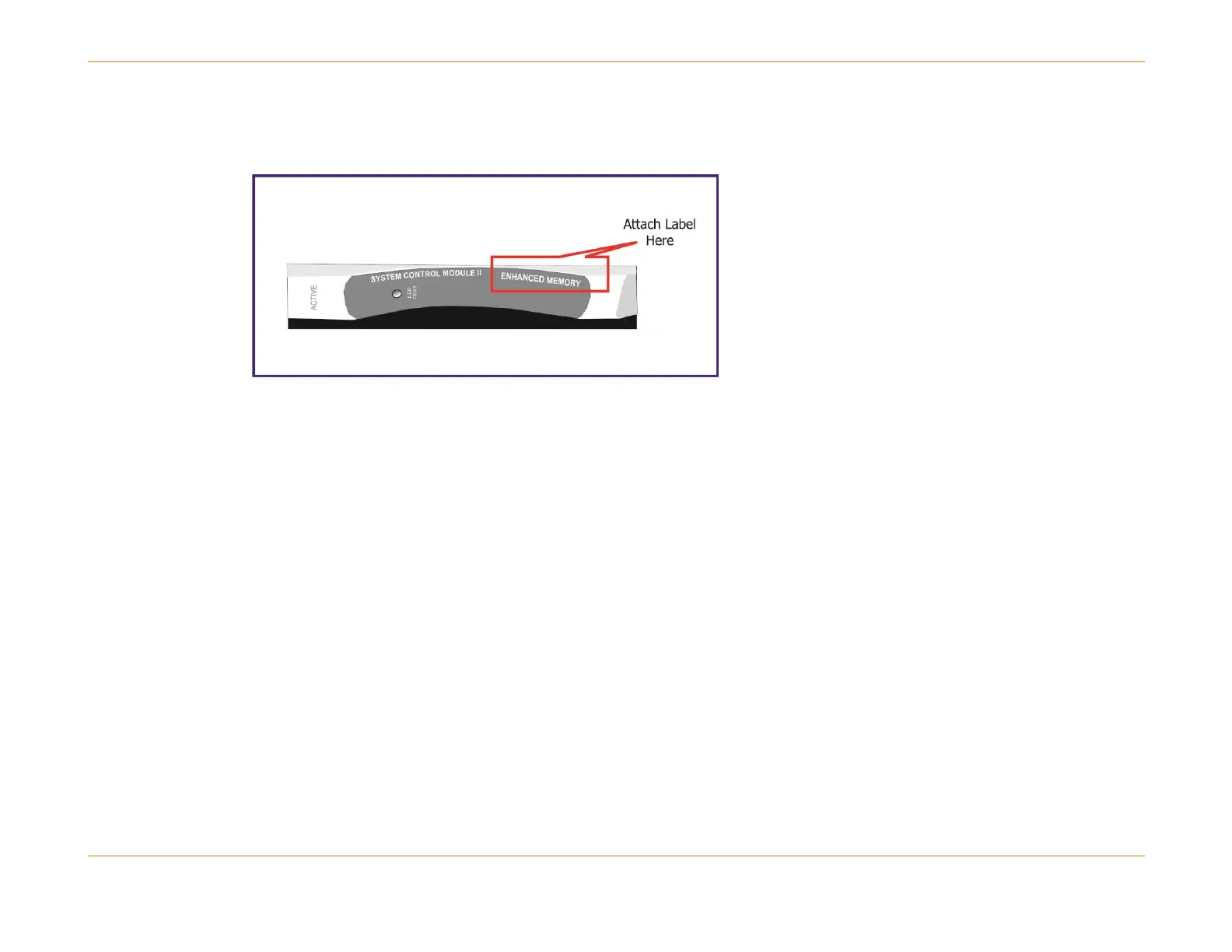
2. Apply the new front panel label supplied in the Upgrade Kit over the top of the existing label in the concave area as
shown in the following figure.
Figure 49: Labeling the SCM
3. Reinsert the upgraded SCM into the CMTS chassis and enable the SCM by entering:
configure slot <x> no shutdown
4. Allow the SCM to boot up in the CMTS chassis. If it fails to boot, remove the SCM from the chassis, remove and reseat
the DIMM module. Then reinsert the SCM into the chassis.
5. If the SCM fails to boot a second time, obtain the serial port output and contact technical support at ARRIS.
6. Once the upgraded SCM has booted, enter:
show version detail <slot>
The output should indicate that the SDRAM has 1024 MB.
7. To ensure that all modules are in-service (IS), enter:
show linecard status
8. Once all cards are in-service, a softswitch can be executed to force the newly upgraded SCM to ACTIVE and force the
other SCM to STBY. Enter:
configure interface <slot> soft-switch
9. Once the system is running duplex, repeat steps 1 - 9 to upgrade the memory in the standby SCM.



 To Next Page